

Gemini CLI for design.
Gemini CLI is Google’s open-source terminal agent. Its multimodal models read screenshots and its 1M-token context holds a whole design system, which makes it a real design tool — once you give it references, conventions, and a verification loop. Open Design wires it into an open-source design workflow: your Google account or API key, your files, local-first.
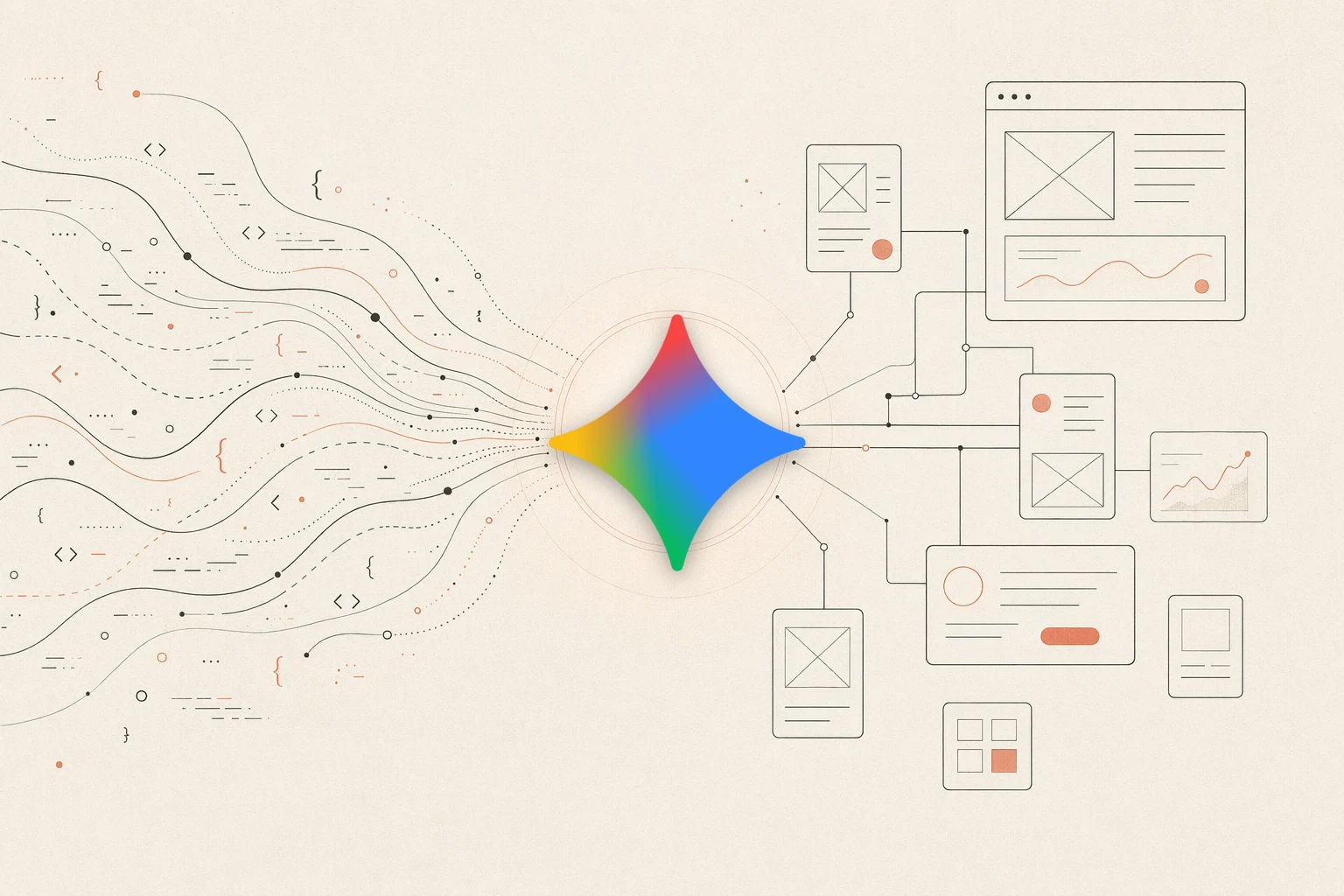
Open Design turns Gemini CLI into a local-first, open-source design agent — your Google account or Gemini API key, your files, a curated skill and design-system library around it.
Gemini CLI is Google’s open-source AI agent for the terminal. Two things make it interesting for design specifically: its models are strongly multimodal, so it reads a screenshot and reasons about layout, spacing, and hierarchy; and its 1M-token context window can hold an entire design system and codebase at once. Paired with the right references, conventions, and a verification loop, it builds real, responsive UI — and it is free to start with a Google account. This is a practical, end-to-end guide to using Gemini CLI for UI, frontend, and design-system work, and to wiring it into a structured design workflow with Open Design.
It covers what Gemini CLI actually is, why its multimodal models and huge context fit design, how to set it up from zero, the screenshot-to-UI loop, how GEMINI.md and MCP extend it, how it compares to Codex, Claude Code, and Cursor, the pitfalls that make AI output look generic, and how Open Design closes the gap as an open, local-first design layer — a natural pairing, since both are open-source and run on your own machine.
What Gemini CLI actually is
Gemini CLI is an open-source (Apache-2.0) AI agent that Google ships for the terminal. It reads your repository, edits files, runs shell commands, fetches the web, and can ground answers with Google Search — planning and verifying work from natural-language tasks rather than just completing lines. The same engine also powers the Gemini Code Assist agent inside VS Code.
For design work, two properties stand out. Its models are natively multimodal, so you can hand it a screenshot and it reasons about the actual layout. And its context window reaches up to 1M tokens, large enough to hold your whole design system, component library, and reference set at once instead of summarizing them away.
- Context files: Gemini CLI reads a GEMINI.md file for persistent project context — the natural place to encode your design conventions, tokens, and review checklists. Personal and team settings layer on top.
- Built-in tools + MCP: It ships file, shell, web-fetch, and Google Search tools out of the box, and supports MCP servers (configured in ~/.gemini/settings.json) to add external context like a live Figma file.
- Free to start: Signing in with a personal Google account gives a generous free tier of Gemini requests; you can also bring a Gemini API key or use Vertex AI.
- Vendor: Google
- Credential: Google account (free tier) or Gemini API key from AI Studio (BYOK) or Vertex AI
- License: Apache-2.0, open source
Why multimodal models and a huge context fit design
Gemini CLI’s design edge comes from two model properties — but, as with every agent, taste still has to be supplied.
- Strong multimodal understanding: Because Gemini models are natively multimodal, the agent reads reference screenshots well — comparing its rendered output back to an image instead of guessing from a prose description.
- A 1M-token context window: A large context means the whole design system, tokens, and many reference states fit at once, so the agent reuses your real primitives rather than inventing one-off styles.
- Conventions in GEMINI.md: A GEMINI.md (plus the Figma MCP server) points the agent at your tokens, components, and real specs, so it works against a brand instead of a default look.
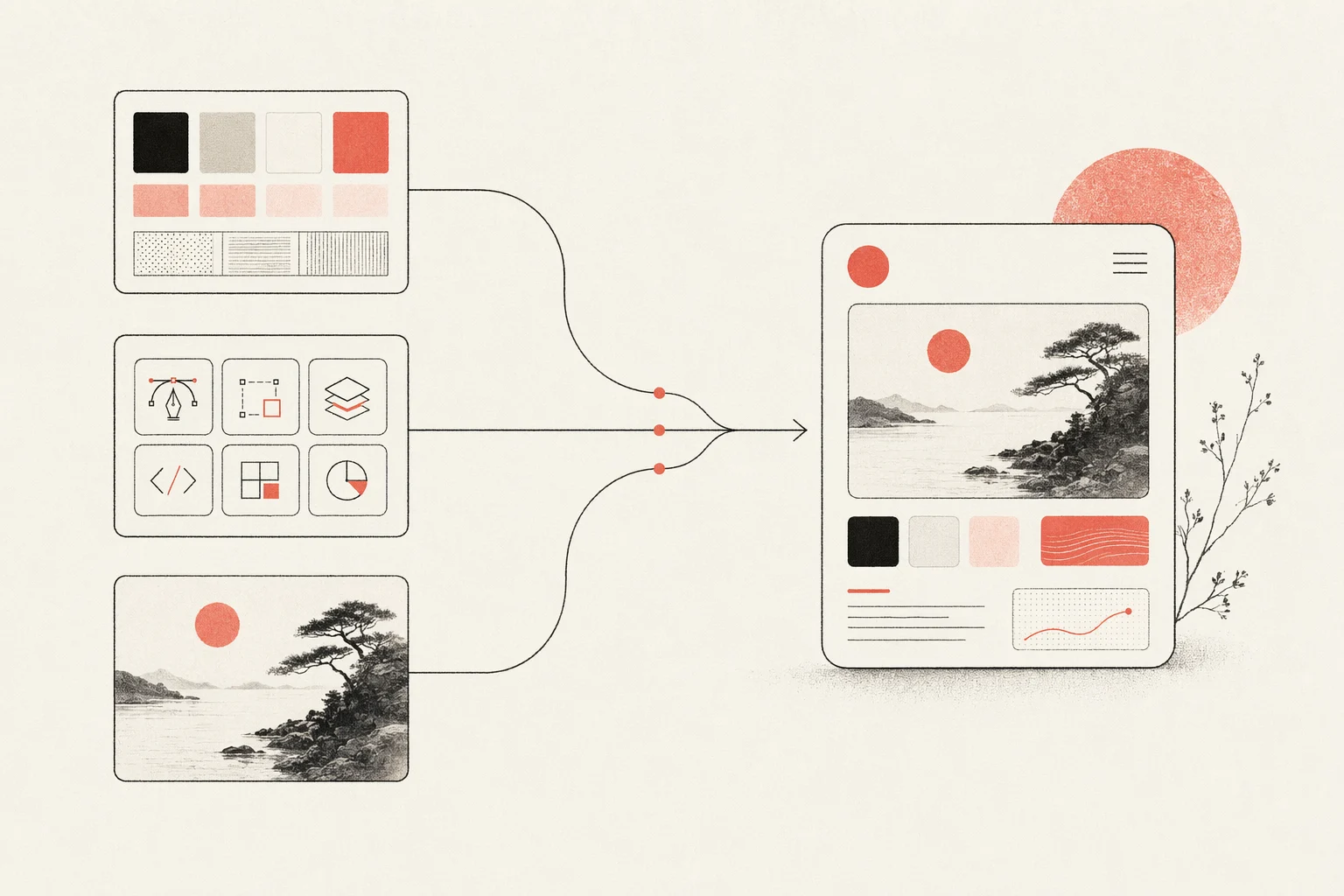
The lesson is the same one every agent teaches: Gemini CLI does not have taste by default. It produces good design when you give it constraints — a design system, an aesthetic skill, and concrete references. Open Design packages exactly those inputs, which is why the two fit together (more below).
Set up Gemini CLI for design work, from zero
Here is the full path from a clean machine to a Gemini CLI that can build and verify UI.
# 1. Install Gemini CLI (Node 20+)
npm install -g @google/gemini-cli
# or run without installing: npx https://github.com/google-gemini/gemini-cli

# 2. Start it in your project and authenticate on first run
cd your-project
gemini            # sign in with your Google account, or set GEMINI_API_KEY

# 3. Generate project context
/init             # scaffolds a GEMINI.md for this project

# 4. Wire the Figma MCP server (optional, for design handoff)
#    add it under "mcpServers" in ~/.gemini/settings.json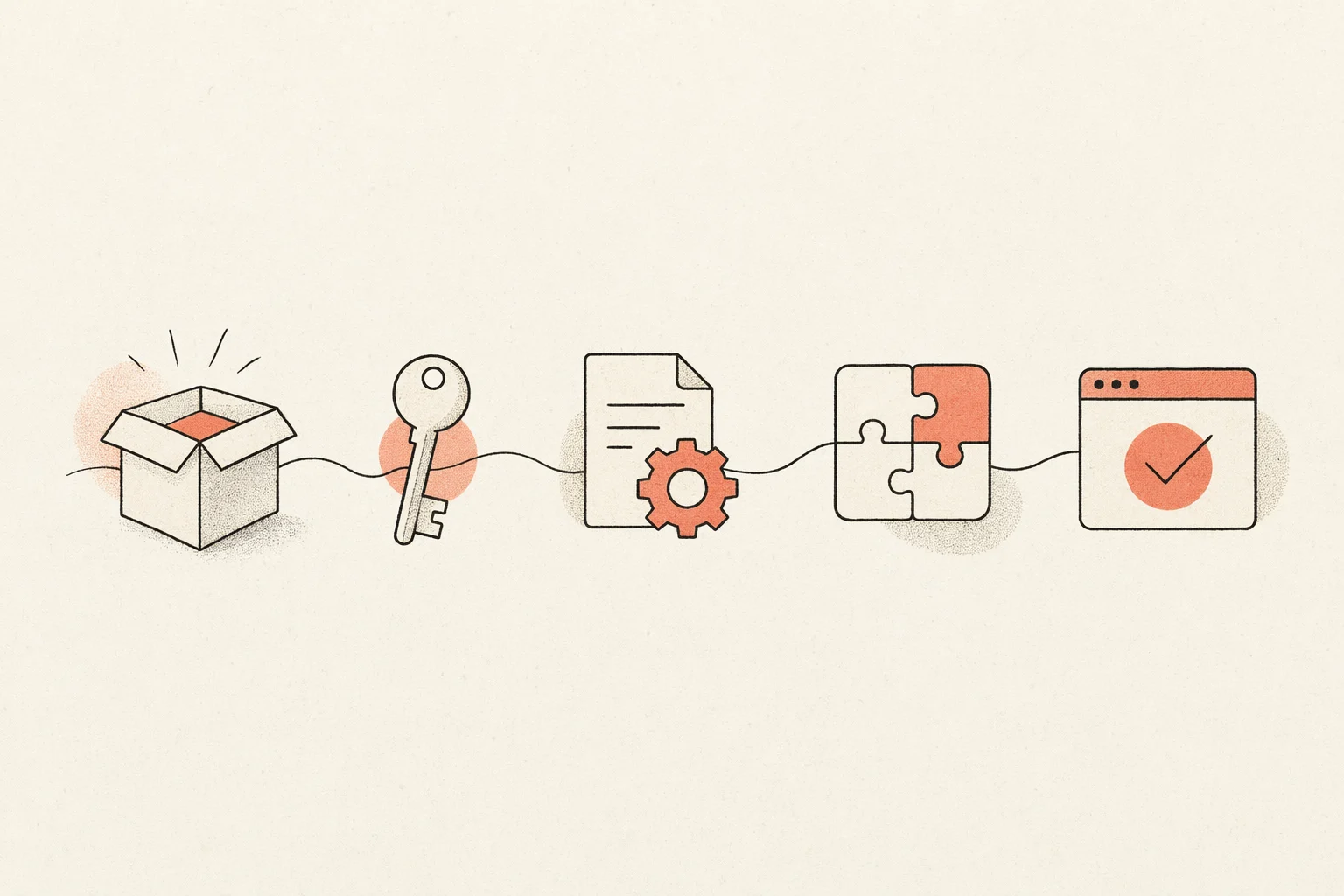
- Encode your design rules: Put your tokens, primitives, and conventions in GEMINI.md and point Gemini at them, so output matches a brand instead of defaulting to a generic look.
- Add browser verification: Wire a Playwright or browser MCP so Gemini renders in a real browser and checks its output across breakpoints instead of only confirming the build passes.
The screenshot-to-UI workflow
The highest-leverage design loop with Gemini CLI is turning a reference image into working, responsive UI and iterating until it matches — leaning on the multimodal model to compare output back to the reference.
- Start from the clearest visual references you have — and include multiple states (desktop and mobile, hover, empty, loading), not just one hero shot.
- Be specific in the prompt; vague prompts produce generic UI even with a strong model.
- Keep your design system and conventions in GEMINI.md, and tell Gemini where the tokens and canonical primitives live.
- Run a dev server and have Gemini render in a real browser, resizing to breakpoints to check the result.
- Iterate by having Gemini compare its implementation back to the screenshots — not merely confirm it builds.
Reference an image with @ to attach it to the prompt, then give concrete constraints:
gemini
# in the prompt:
> @reference-desktop.png @reference-mobile.png
  Implement this design in React + Vite + Tailwind + TypeScript.
  Reuse my existing design-system components and tokens from GEMINI.md.
  Match spacing, layout, and hierarchy; make it responsive.
  Render it in the browser and iterate until it matches the references
  across breakpoints.
Keep prompts small and focused, commit good iterations and revert bad ones (telling Gemini when you revert), so each pass builds on a clean base.
GEMINI.md, MCP, and extensions
Three extension points make Gemini CLI practical for sustained design work, and all three map cleanly onto an open design workflow.
- GEMINI.md context: Project rules live in a GEMINI.md at the repo root (with global and team layers). It is the durable home for your design conventions, read on every run.
- MCP servers: Configure MCP servers under ~/.gemini/settings.json — the portable way to bring in design context and external tools, most relevantly the Figma MCP server, that work across agents, not just Gemini.
- Extensions and built-in tools: Gemini CLI extensions and its built-in Google Search, file, shell, and web-fetch tools let it gather references and run the verification loop without leaving the terminal.
These are portable, multi-agent capabilities — exactly the kind of thing Open Design is built to orchestrate, rather than re-create per project.
Gemini CLI vs Codex vs Claude Code vs Cursor for design
There is no single winner for design work — each agent has a different strength, and experienced teams stack them. A fair summary:
| Agent | Design strength | Best for |
|---|---|---|
| Gemini CLI | Strong multimodal image understanding and a 1M-token context; open-source with a free tier | Screenshot-heavy work and holding a whole design system in context |
| Codex | Strong visual polish with a frontend skill; sandboxed async builds | Delegated async builds and portable AGENTS.md rules |
| Claude Code | Specific design decisions (hex, spacing, type) and codebase-aware UX | Frontend reasoning and large-context refactors |
| Cursor | Visual build-and-see loop with live preview and inline edits | Tight iterate-and-watch UI work inside an IDE |
The recurring community verdict is that taste comes from humans: all of them default to a generic aesthetic without skills, references, and constraints. That is the real problem to solve — and it is design-tool-shaped, not model-shaped.
Pitfalls, and how to avoid the “AI slop” look
The most common complaint about AI-generated design is that it looks generic — soft gradients, floating panels, oversized rounded corners, dramatic shadows, an Inter-and-purple vibe that “screams an AI made this.” Other reported issues include broken mobile layouts and instructions leaking into UI copy. None of these are unique to Gemini CLI; they are what happens when any agent runs without a curated design context.
- Add an aesthetic skill: A curated design skill forces the agent to commit to a real direction instead of the default look.
- Verify in a real browser: Use the multimodal model to render and self-check across breakpoints so layouts do not silently break on mobile.
- Supply tokens and references: Real design tokens and reference screenshots are the single biggest lever on output quality.
- Encode rules in GEMINI.md: Put “no hero cards, max two typefaces, brand-first hierarchy” style rules where the agent reads them every run.
Notice that every mitigation is about giving the agent a curated design context. Maintaining that context by hand, per project, is the toil Open Design removes.
Designing with Gemini CLI inside Open Design
Open Design is the open-source design layer the workflow above keeps asking for. It treats Gemini CLI as a first-party adapter and wraps it in a curated skill and design-system library, a structured render pipeline, and a local desktop UI — so the design context that makes Gemini good is there from the first run, not assembled by hand each time. Both are open-source and local-first, which makes the pairing a natural fit.
- Install Open Design and select Gemini CLI as your agent.
- Authenticate with your Google account or Gemini API key (BYOK) — credentials stay on your machine and are never proxied through us.
- Pick a design system and a skill, then generate decks, prototypes, and landing pages with consistent taste.
- Every artifact and DESIGN.md file lives in your own repo, not a hosted cloud.
Same Gemini CLI agent, same key — plus a real, portable, open-source design workflow around it. It is local-first and Apache-2.0, so nothing about your work or your credentials leaves your machine.
Frequently asked questions
-
01 Can Gemini CLI really do design work?
Yes — with an aesthetic skill, a design system, and real reference images in context, Gemini CLI produces production-quality, responsive UI, and its strong multimodal models verify output against references. Without that context it tends to default to a generic look, which is the gap Open Design fills.
-
02 Do I need to pay to design with Gemini CLI?
No — signing in with a Google account gives a generous free tier, and you can also bring a Gemini API key (BYOK) or use Vertex AI. Open Design never proxies your credentials either way.
-
03 What makes Gemini CLI good for design specifically?
Two things: its models are strongly multimodal, so it reads reference screenshots well, and its 1M-token context can hold an entire design system and reference set at once. Both help — but taste still comes from the design system, skill, and references you supply.
-
04 Gemini CLI or Claude Code for frontend design?
Both are strong. Claude Code is known for specific, codebase-aware design decisions; Gemini CLI’s edge is multimodal understanding plus a huge context and a free tier. Many teams use both — Open Design lets you switch agents without changing your design workflow.
-
05 How do I connect Gemini CLI to Figma?
Add the Figma MCP server under mcpServers in ~/.gemini/settings.json. Gemini can then pull real design context — components, variables, layout data — so the generated code matches the source instead of approximating it.
-
06 Is Open Design affiliated with Google?
No. Gemini CLI is a product of Google; Open Design is an independent open-source project that supports it as a first-party adapter. Gemini is a trademark of Google.
-
07 Are my files and credentials safe?
Yes — Open Design is local-first and Apache-2.0. Your files, artifacts, and DESIGN.md stay in your own repo, and your Google credentials are used directly by your agent, never routed through Open Design servers.
Design with Gemini CLI, the open way.
Bring your own Google account or Gemini API key, keep every file local, and get a curated design library around the agent you already use.